
Seller guide
Publish your first menu item
Your goal
The available item displays its price and portion on your menu.
Before you start
- A seller account with access to this screen
Follow these steps
Open Menu.
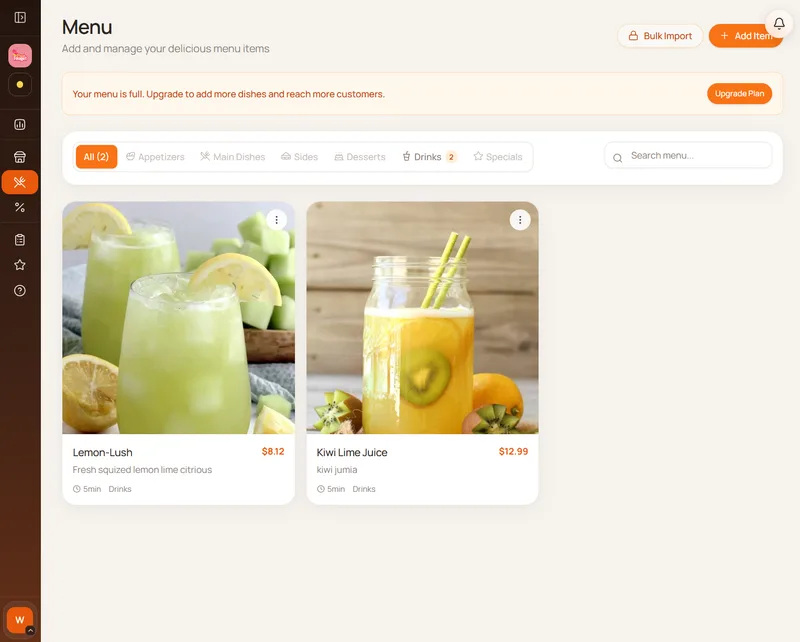
Step 1 · MenuManager reference view for publish your first menu item Select Add Item.
Enter the name and item price.
For optional sizes, expand Portions & sizes. Choose Use Small, Medium, Large or add up to three sizes for food or drinks. Enter each full unit price, or leave it blank to use the item price.
Identify relevant allergens and add an accurate photo.
Save the item and review it in the storefront.
Check your result
The available item displays its price and portion on your menu.
Common mistakes and fixes
- Check local licensing and food-labeling rules before listing homemade food.
Quick check
Verify the outcome
The available item displays its price and portion on your menu.
What should you check if the result is unexpected?
Check local licensing and food-labeling rules before listing homemade food.
Learning progress
0/1 lesson · 0%Sign in with your existing Anygoodfood account to save progress.
Guide completion records reading progress. Certification and Sellerhub Compliance require their own knowledge checks.